
LOAHF Forum Team Leader
mod_chimera
Troubleshooting Guide
Check this guide to see if it will help your disconnecting/crashes/freezes during gameplay. If none of the steps work, please see the bottom of this post on what to do next.
· Ensure you are running the computer as the administrator while performing these steps to avoid data corrupted files
· If your anti-virus pops up to block your actions – either add GTarcade client to the exception list or disable it for the time being.
· Steps are in ascending order for technicality
· Recommended to go in order for optimal results
· After each step is completed, check to see if the problem is resolved
Steps
1. Restart / Refresh the client or browser.
2. GTA Repair Tool – right click on GTarcade icon > open file location > inside the folder, locate the GTarcade Repair and run it (you may have to enable hidden files).
3. Login from web browser or GTarcade client. If you are using the GTarcade client, try the browser. If using the browser, try the GTarcade client.
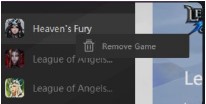
4. Remove the game from GTarcade client by right clicking the game name on the left. Then, go back to the Games menu on top and reinstall LOA – Heaven’s Fury.
5. If having issues with a particular browser, try another one. Examples include: IE, Chrome, Mozilla Firefox, Opera, Safari.
6. Try using a VPN.
7. Restart your modem / router.
8. Clear your cache, by either a manual clearing of the cached files or by using a free 3rd party program such as CC Cleaner - https://youtu.be/IFwO2eEtv0w

9. Uninstalling GTarcade and doing a fresh install – go to add/remove programs and uninstall GTarcade client. Do a fresh install. If the uninstaller isn’t working, you can use a free 3rd party uninstaller such as Wise Program Uninstaller.
10. DNS Flush – DNS translates hostname to IP and vice versa. Flushing the DNS settings empties and repopulates the DNS settings in the client, or in situations where the DNS settings are incorrect / out of date. Steps are below:
a. Open the Windows Start Menu
b. Type CMD, run it. (CMD is command prompt)
c. Type the following: ipconfig/flushdns
d. Press enter
e. Restart the game and check if problem persists
11. Winsock Catalogue – Netsh winsock reset is a useful command that you can use in Microsoft Windows to reset winsock catalogue back to default setting or clean slate
12. Other considerations for Crashes during Events:
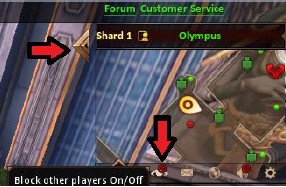
a. Block other players by clicking the eye – especially for crashes during cross-server events
b. Minimize the events icon when not in use.
If all these steps have not improved your crashing/lagging/disconnecting/freezing, the Devs require the a support ticket sent to them at: https://support.gtarcade.com/ with the following information:
- In-game name
- Server
- IP address
- Permission to authorize Devs to superlog
- Accept the Dev's operation management team's invite to control your computer to check if there is something wrong
LOAHF MOD - Chimera
Translate
mod_chimera
LOAHF Forum Team Leader
Popular Posts
1

cross bug
1 discussions 19 views
2
Log in problem
4 discussions 35 views
3
cant recharge
26 discussions 2.2K views