
Silver Mistress

silvermistr
Platforms
This forum support is for three platforms: GTA, Facebook and Gamerocks, formerly Kabam. It's important to let me know what your platform is, so I can assist you better whenever you report in-game related issues.

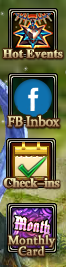
As you can see from the screenshot above, Facebook and GTA logo are properly labelled next to your character's name, so your platform cannot be both. All Facebook players also have an extra icon called FB Inbox that none of the GTA players have. So, Desktop App or client is not the platform's name. I have to emphasize this because I had players in the past who told me the platform is Desktop App. Desktop App, as its name suggests, is an app, not a platform.
Facebook (Recharge)
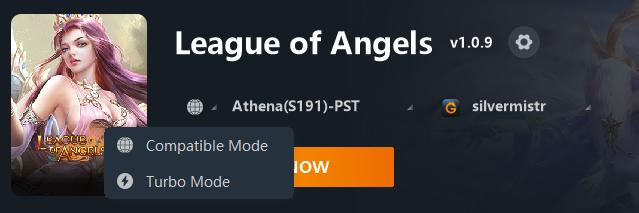
To all Facebook players, if you want to recharge any deals from Direct Shop or anything beside Diamonds like Special Offer and Royal Perks, please load the game by Turbo Mode. Compatible Mode only allows Diamonds recharge, so just change the mode so it can properly connect to your Facebook character.
Gamerocks (https://www.gamerocks.com/angel/game)
Players from Gamerocks, formerly Kabam, are using a different client, called mini game. If the download link is not working, please try the following link: https://oss.youzu.com/microsdk%2F6941ee4d-28bc-46c9-8a8c-8eef0b1f103d.exe?Expires=4908765320&OSSAccessKeyId=LTAI5tNH3uiLkt6sDVeUtJa7&Signature=qcifOEpnWgbdFDKW4uMihOJPua4%3D&response-content-disposition=attachment%3Bfilename%3D%22LeagueofAngelsKabam.exe%22
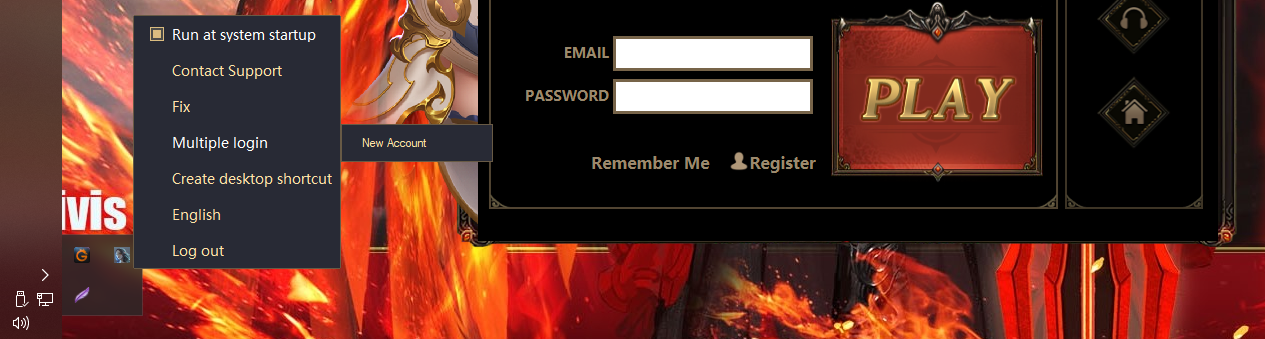
Whenever you run a mini game, the icon can be found in the tray system. In case no one notices, the client has multiple login feature. Just right click on the icon and set up a new account. I'm not sure how many logins you can add but a new account is just basically an extra mini game. Remember Me is not working, so you have to enter the game info every time you want to play the game.
Clear Cache
- Exit your active GTA from the tray system.
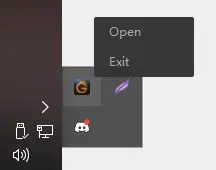
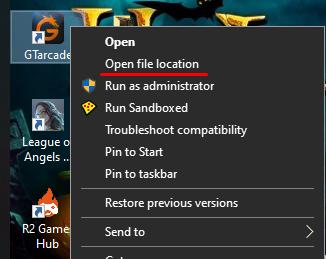
- Right click on the GTA icon and select Open file location.
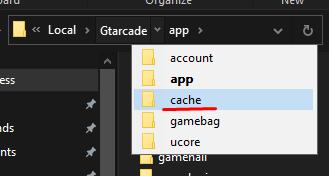
- Go to cache folder from the address bar.
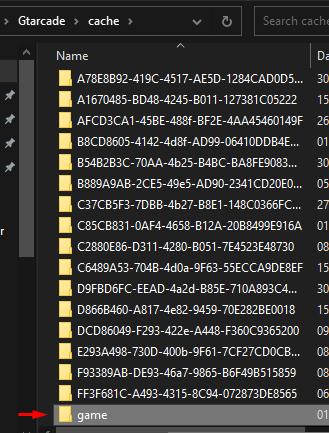
- Delete game folder.
- All that's left is launch Desktop App again, and you will be asked to enter your login info once more.
Screenshots
It is VERY MUCH appreciated if you can learn how to take proper screenshot(s) if you are unable to. Screenshot is one of the requirements for report, even for a mundane issue. Lightshot is the recommended solution. It's a small app that allows you to upload, share, print, copy, and save the screenshot you take with or without editing. If you don't want to use this app, no problem, but in case the image size becomes an issue, just upload them to any free image hosting site and share the link.
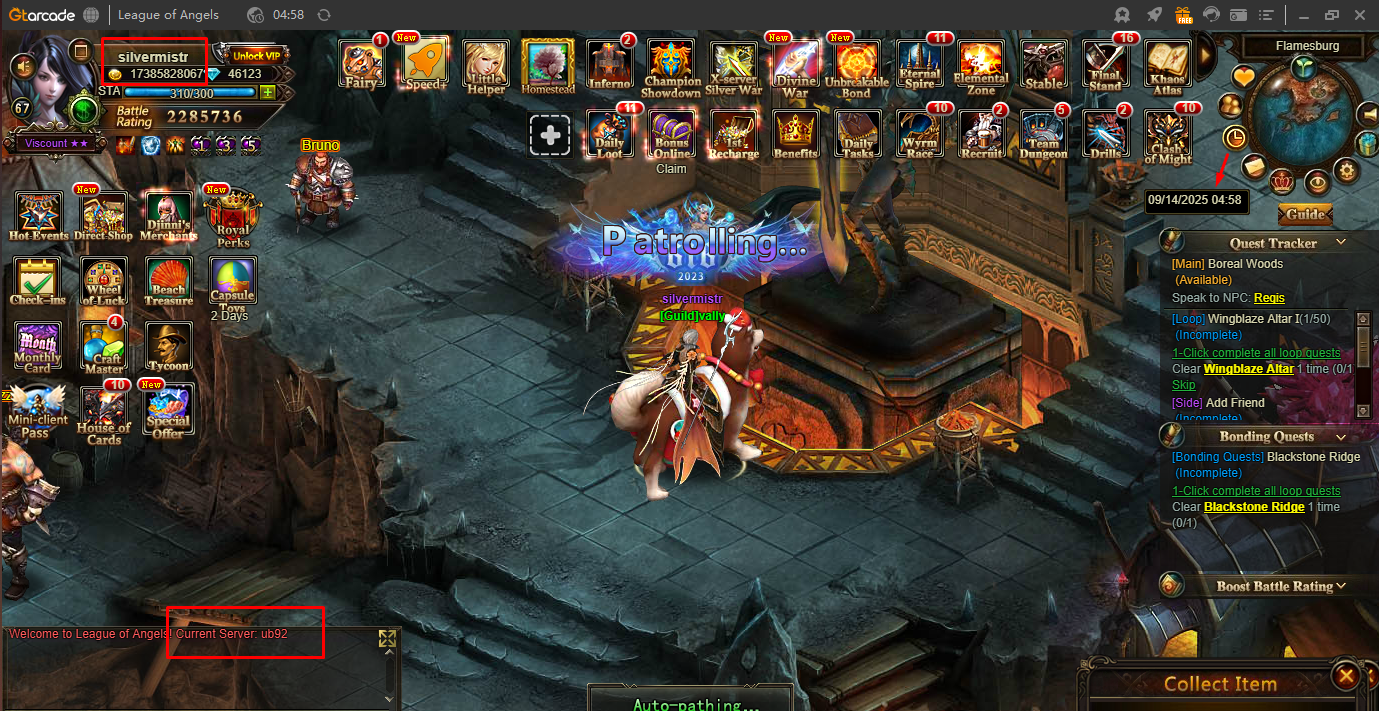
Three things I have to highlight whenever you take a screenshot: IGN, server name/number and timestamp (optional). Desktop App has it's own timestamp at the top bar but has no date, so in-game clock is more accurate. In cases when screenshot of Hot Events is provided, timestamp won't be necessary but please, please do not crop the game info.
Comment
Unless you are instructed otherwise, always reply using Comment box at the bottom. Replying to comment will not update the post, so I will likely miss your reply if I don't personally check the post.

Translate

silvermistr
Silver Mistress
Popular Posts
1

Skill books
11 discussions 87 views
2

Level 17 Angel Essence / Combo
6 discussions 81 views
3
Inscription #25
16 discussions 210 views